In this article
A file on your computer is not yet a publication your visitors can reach. To embed a catalog in WordPress, establish a working public URL first and then prepare the frame displaying it. Keeping those stages separate helps you locate problems in the publication’s hosting, embedding code or surrounding website.
Imagine adding a company brochure to a “Catalog” page. You want visitors to browse it, retain a direct alternative link and avoid unnecessary bars or wasted space on phones. The WordPress page does not need to reproduce the editor used to create the document. It needs to provide a clear route to the finished publication.
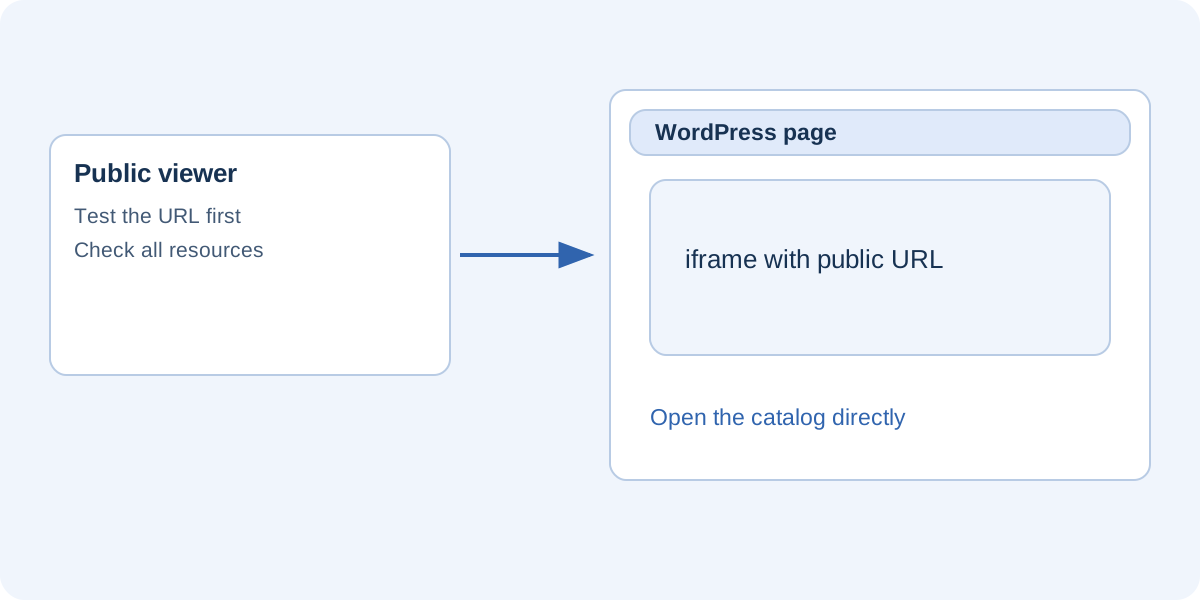
Publish and verify the viewer first
With an online publishing service, open the returned address and inspect the cover, an internal page and the final page. With a website ZIP export, extract the package and upload its initial page and required directories together, preserving paths. Uploading the ZIP alone does not automatically create a browsable website.
The address should be available to the intended audience without depending on your administrator session. A private window or another device can help reveal permission errors. Use an HTTPS address and verify that resources do not refer to files stored only on your own computer.
Explain what the page contains
Place a title and short introduction before the viewer. Identify the catalog, its edition and its purpose. This gives readers context before loading completes. Do not replace useful information with repeated search terms or technical instructions meant only for the person maintaining the website.
Provide an “Open the catalog directly” link nearby. If a PDF download is available, label it as a download and keep its edition consistent. The page remains useful when an embedded frame is inconvenient or readers prefer consulting the document independently.
Use the correct editor block
The WordPress block editor normally provides a Custom HTML block for markup such as an iframe. In the Classic Editor, HTML is entered through the Text tab. What an account can save depends on permissions, site configuration and filters, however. Not every user can insert every kind of element.
If the iframe disappears after saving, compare the saved content with what you entered and ask the administrator to check the relevant permissions. Do not disable protections indiscriminately before identifying the filter involved. If the code appears as visible text, check whether you are using a block that interprets HTML rather than one intended to display it.
What the iframe needs
The essential elements are a public destination, a descriptive title and dimensions suited to the page. A width of 100% helps the frame fit its available container. Height requires a practical check: too little can constrain the experience, while too much may create unhelpful space on a phone.
Do not copy security restrictions from unrelated examples without understanding their effect. Restrictions can prevent viewer functions, while removing every restriction is not a universal solution. The embedding-code generator provides a starting point. Replace any demonstration address with your actual public publication URL.
Check the published page
Save the page and visit its public address. Inspect margins, frame height, visible controls and interactive links. A theme or optimization system can produce a result different from the editor preview. Check whether a fixed banner covers controls near the bottom.
On a phone, test both website scrolling and catalog navigation. Readers should understand when they are moving through the page and when they are interacting with the publication. If the embedded experience is awkward, consider a cover image linking to the full viewer rather than forcing it into an unsuitable frame.
Recognize common failure patterns
When a direct URL works but embedding fails, the publication may have server rules preventing frames. Its hosting administrator needs to inspect those rules. Repeatedly changing the frame’s width or height cannot solve a server-level prohibition on embedding.
If controls appear but pages do not, verify that all export directories were uploaded. If an old edition appears, check the actual destination first, then browser, website and hosting caches. Keep those diagnoses distinct: missing files are not a cache problem, and a wrong address is not necessarily a theme defect.
Plan updates around stable routes
Record both the WordPress page URL and the catalog URL. If you replace the publication while preserving its address, the iframe generally does not need a new destination, but you should still check the edition displayed. If the address changes, update the direct link, related buttons and any QR codes referring to it.
Do not put confidential material in a public publication merely because it appears within another page. The viewer URL may also be opened outside the iframe. With FLIPBOOKPRO, keep the editable project separately from the reader output and verify the published result after important changes. A successful integration is a dependable path from the website to the information, not merely a frame that appears while you edit.
Further documentation
Found an error or an unclear passage? Contact FLIPBOOKPRO, and include the article address and the passage concerned.