📄
PDF to Flipbook
Import a PDF and turn its pages into an interactive digital publication with smooth navigation, zoom and multiple display modes.
Explore the main tools available in FLIPBOOKPRO Studio for converting PDFs, designing publications, adding interactive content and exporting your work.
Import a PDF and turn its pages into an interactive digital publication with smooth navigation, zoom and multiple display modes.
Start with blank pages and build a publication with text, images, shapes, buttons, backgrounds and video.
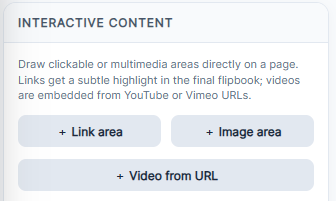
Draw external or internal link areas over page content and edit their destinations. Link-area interactions in the reader require PRO or CLOUD.
Embed public YouTube or Vimeo videos and test playback in Full preview. Playback needs an internet connection and permission to embed from the provider.
Compare Classic Page Flip, Slider, Slide and Coverflow in the Studio preview. Current HTML/ZIP and online publication use the classic page-flip viewer.
Customize backgrounds, navigation, titles and branding. PRO users can use custom logos and remove FLIPBOOKPRO branding.
Save your project and reopen it later to continue editing without rebuilding the publication.
Export a self-contained HTML flipbook or a ZIP website package that can be uploaded to your own hosting.
PDF parsing and page rendering can take place directly in your browser, so the document does not need to be uploaded to FLIPBOOKPRO just to create the flipbook.
The Interactive Content panel offers controls for placing links, images and supported online video on a page.
Follow the step-by-step walkthrough to see how this fits into import, editing and publication.
| Task | Where in Studio | Instructions |
|---|---|---|
| PDF import and quality | Document → Load PDF / PDF image quality | Instructions |
| Viewer effect and background | Document → Display mode; Background | Instructions |
| Logo and branding | Branding → Custom logo / Remove logo (PRO) | Instructions |
| Editable page content | Add Content → Text / Image / Shape / Button | Instructions |
| Project and online edition | Project → Save Project; Save Flipbook → Publish Online | Instructions |
Display mode changes the Studio preview: Classic Page Flip, Slider, Slide and Coverflow are available there. The current HTML and ZIP exporter, also used by Publish Online, produces a Classic Page Flip viewer. A Slider or Coverflow preview does not mean the exported publication uses that effect. Check the final output before choosing a format for your readers.
Compare the features needed for your publication. The Account panel in Studio shows your active plan and current online allowance.
| Plan | Exported pages | Online publications | Maximum per online publication |
|---|---|---|---|
| FREE | Up to 20 | 1 | 20 MB |
| PRO | No plan page cap | 1 | 50 MB |
| CLOUD | No plan page cap | 5 | 50 MB |
Custom background images, custom or removed viewer branding, and unrestricted link-area interactions require PRO or CLOUD. FREE includes FLIPBOOKPRO branding and a watermark. The PRO and CLOUD licenses run for one year; they are not lifetime plans.
Keep the editable project and the reader output separately. Publish Online uploads the generated publication; importing a PDF does not publish it. Embedded YouTube/Vimeo videos and external links still need an internet connection, even with a self-contained HTML export.