1. Choose quality and import
- Open Studio. Under Document → PDF image quality choose High for your first test.
- Click Load PDF in Document, or Import PDF on the start screen. Select your file and wait until processing finishes.
- Expand Pages. Select the cover, a page with small text and the final page; compare them with your source PDF.
| Setting | Rendering | Use |
|---|---|---|
| Standard | Scale 1.5; JPEG 0.92 | Try for smaller exports and lighter imports. |
| High | Scale 2; JPEG 0.94 | Starting point; a typical A4 page is about 1190 × 1684 px. |
| Ultra | Scale 2.5; JPEG 0.96 | Try for more zoom detail when the source contains it. |
Changing this setting after import does not regenerate the pages. Save your project before reimporting: Load PDF replaces the current document and added elements. Use Pages → + PDF to append instead.

2. Draw an external link
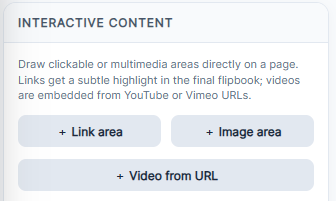
- Select the required page. Open Interactive content → + Link area.
- Select External website and enter the complete product URL.
https://example.com/products/lampis an example to replace. - Click Draw area on page and drag a rectangle over the visible product name or button in the page preview. Release to create it.
- In the Interactive content list, Edit target changes the URL; Edit area lets you redraw the rectangle.
Imported PDF pages are rendered images. Text adds an overlay; it does not edit the price or words already printed inside the PDF. Change those in your original design file and export a new PDF.
3. Add a link to another page
- Select the contents page and choose + Link area → Internal page.
- Enter a destination such as 3 in Target page. Click Draw area on page and draw over that contents entry.
- After inserting or moving pages, check Edit target again. The destination is a page number, so it needs to match the new order.
4. Test and save
- Open Full preview to try the links. Clicking inside the editor selects elements for editing.
- If a PRO message appears for links or images, check your Account plan: link interactions require PRO.
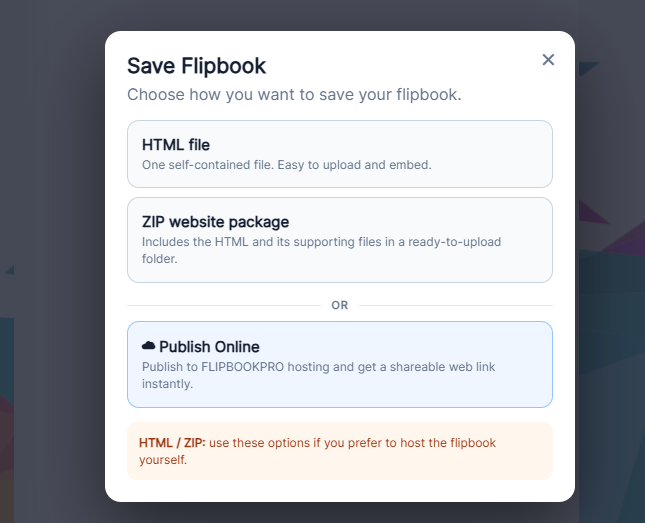
- Use Project → Save Project to download the editable .pdfinflip file. Then choose Save Flipbook → HTML file, ZIP website package or Publish Online.
- Open the exported result or public URL and test the links again.