Prepare the content or open the starter project
Have your own product photograph, real price, offer dates and product URL ready. “Your shop”, “Weekly offer”, “Table lamp” and “€29.90” are placeholders. This is a digital flyer in the viewer: the Save Flipbook dialog does not export a print PDF.
Download the editable flyer starter
Save your current work, then use Project → Open Project to open the download. It contains editable text and shapes, without a ready-made product photo or commercial link. To build it yourself, follow these steps.
Slider is a Studio preview choice. The current published and exported viewer uses Classic Page Flip; check your single-page flyer in that final output.
1. Create the page
- Click Create from Scratch. Choose Square: Width 1080, Height 1080, Pages 1. Set Page color to white and click Create Flipbook.
- Choose Document → Display mode → Slider · one page at a time. Use this to inspect one page at a time in the Studio preview.
2. Add the heading and product photo
- Expand Add Content → Text. Enter your shop name, try Font size 32, a dark Text color and Center alignment. Leave Transparent background checked.
- Click Draw text area and draw a strip near the top. Font size is a control value, not a print point specification: adjust it while viewing the result.
- Add “Weekly offer” as a separate Text element, starting with Font size 40.
- Click Image, choose your photo and draw its rectangle in the middle of the page. Prepare an image with suitable proportions; this workflow has no focal-point crop control.
Drag an element to move it. Select it and drag the small bottom-right circle to resize it. Double-click text, or use Edit selected element, then confirm with Apply changes.
3. Add price, conditions and button
- Add separate Text elements for product name and price; try 24 and 48 as starting font-size values.
- Add the actual validity dates and offer conditions. Replace every placeholder in the starter.
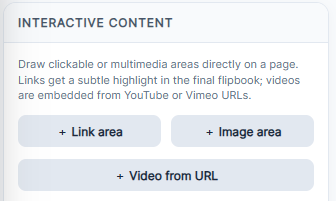
- For a price panel choose Shape, set Fill and Border, then Draw shape. If it covers the price, use Backward on the shape in the Interactive content list.
- Choose Button. Set Button text to “View product”, enter your complete URL, choose Background and Text color, then click Draw button and draw below the conditions.
4. Test, save and distribute
- Open Full preview. Read price and conditions and test the button. Links/images can show a PRO notice in the viewer; check with the plan you will use.
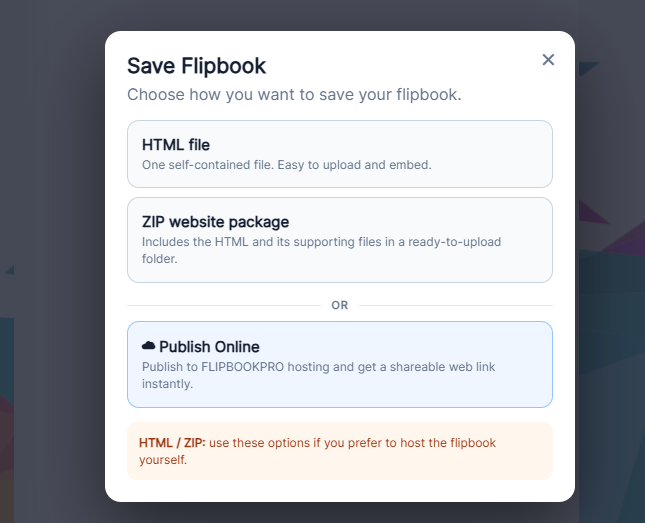
- Download Project → Save Project. Then Save Flipbook → Publish Online, wait for the public URL and open it before sharing.
- To change the offer, reopen the .pdfinflip, edit its text and save a new copy. Use Online Flipbooks → Update to retain an existing public URL.