Prepare four pages of content
The exercise uses page 1 for the cover, 2 for lighting, 3 for accessories and 4 for contacts. Prepare your own photos, actual descriptions, prices, opening hours, address and URLs. These are sequential digital pages, not an imposed print leaflet.
Download the editable brochure starter
Save existing work before Project → Open Project. The starter contains text and shapes to replace; shop details and prices are illustrative placeholders.
1. Create the cover
- Click Create from Scratch → A4 Portrait. Use Width 794, Height 1123, Pages 1, white Page color, then Create Flipbook.
- In Add Content → Text add the shop name with a starting Font size of 32, Center alignment and Transparent background; draw its area near the top.
- Add separate text for “Ideas for your home” and the edition date. Use Image to select and draw a cover photograph.
- Use Pages → Blank page color for the page background. Background → Color changes the viewer behind the page instead.

2. Create the first product page
- Select the cover in Pages, then + Blank. The new page is inserted immediately after it and selected.
- Add separate Text areas for category, product name, price and a short description. Example placeholders: “Lighting”, “Table lamp”, “€29.90”, “Metal base · warm light”.
- Use Image to place the product photograph above those fields.
- Use Button for “View details”; enter the product URL and choose Draw button to position it below the description.
3. Reuse the layout for page 3
- Select page 2 and click Duplicate. Page 3 contains copies of the elements and their URLs.
- Double-click each Text element, change its content and confirm Apply changes.
- Select the Image and use Edit selected element to choose a replacement file; its area is retained.
- Double-click the Button and replace its URL as well. A new product photo does not change the copied link.
- Use Edit area to redraw a rectangle and Forward/Backward in Interactive content to fix overlapping elements.

4. Add contacts and check the result
- Select page 3, click + Blank and add actual address, opening hours and contact information with Text.
- Add a Button to your contact page or your public map listing. Open that URL separately first to verify it.
- Use Pages → Move up/Move down to correct the order. Optionally draw a cover link with + Link area → Internal page → Target page 2; check this number after structural changes.
- Compare Slider and Classic Page Flip in Document → Display mode, then use Full preview to test both product buttons and contacts. The mode does not reflow your content.
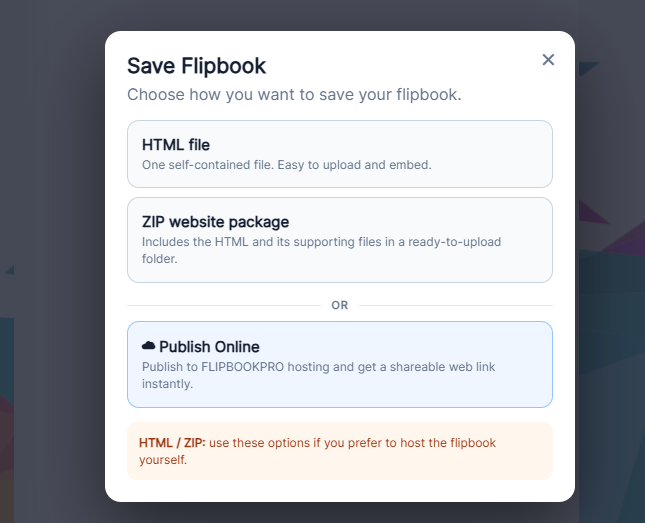
- Save the .pdfinflip and export or publish. Open the final public result; verify four pages, prices and no remaining placeholders. Check any PRO notice on interactions before sharing.