A — I already have a PDF
Keep the layout of an existing brochure or catalog and add interactions and viewer styling.
A1. Import your existing PDF brochure
- Open Studio. Under Document → PDF image quality choose High for your first test.
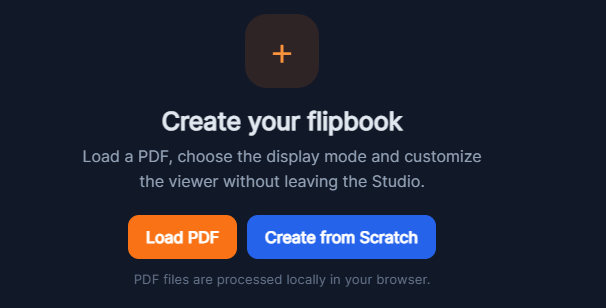
- Click Load PDF in Document, or Import PDF on the start screen. Select your file and wait until processing finishes.
- Expand Pages. Select the cover, a page with small text and the final page; compare them with your source PDF.
| Setting | Rendering | Use |
|---|---|---|
| Standard | Scale 1.5; JPEG 0.92 | Try for smaller exports and lighter imports. |
| High | Scale 2; JPEG 0.94 | Starting point; a typical A4 page is about 1190 × 1684 px. |
| Ultra | Scale 2.5; JPEG 0.96 | Try for more zoom detail when the source contains it. |
Changing this setting after import does not regenerate the pages. Save your project before reimporting: Load PDF replaces the current document and added elements. Use Pages → + PDF to append instead.
A2. Choose the page-turning effect
- Under Document → Display mode choose Classic Page Flip, Slider, Slide or Coverflow Gallery.
- The preview reloads with the current project; you do not need to reimport.
- Test navigation and zoom in Full preview. Slider shows one page at a time; switching mode does not reflow text.

Display mode changes the Studio preview: Classic Page Flip, Slider, Slide and Coverflow are available there. The current HTML and ZIP exporter, also used by Publish Online, produces a Classic Page Flip viewer. A Slider or Coverflow preview does not mean the exported publication uses that effect. Check the final output before choosing a format for your readers.
A3. Set background, color and opacity
| Control | Effect |
|---|---|
| Background → Color / thumbnails | Background behind the publication pages. |
| Background → Opacity | Opacity of that background layer; not page/text opacity. |
| Background → Custom image | Custom viewer background, a PRO feature. |
| Pages → Blank page color | Color of the selected blank page only. |
| Text/Shape properties → Opacity | Opacity of that added element. |
- Click a Background thumbnail or choose Color.
- Adjust Opacity and inspect the area outside the pages.
- For your own file choose Custom image and check PRO availability.

A4. Replace or remove the viewer logo
- Open Branding in the right sidebar. Default FLIPBOOKPRO logo keeps the service logo.
- With PRO choose Custom logo → Choose logo and select your image file.
- Check the preview; prepare a transparent PNG first if you want only the mark without a rectangular background.
- To hide the viewer logo select Remove logo, also a PRO option.
- With FREE these custom controls are disabled and the viewer uses FLIPBOOKPRO branding and a first-page watermark. A logo inserted inside the PDF or as a page Image is separate from viewer branding.
Save Project afterwards. To change a previously published viewer, export again or use Update; changing the editor preview alone does not alter an existing public edition.
A5. Make PDF text and printed buttons clickable
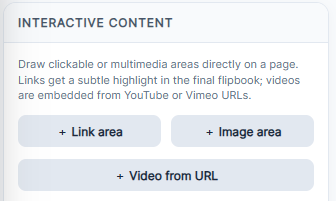
- Select the required page. Open Interactive content → + Link area.
- Select External website and enter the complete product URL.
https://example.com/products/lampis an example to replace. - Click Draw area on page and drag a rectangle over the visible product name or button in the page preview. Release to create it.
- In the Interactive content list, Edit target changes the URL; Edit area lets you redraw the rectangle.
Imported PDF pages are rendered images. Text adds an overlay; it does not edit the price or words already printed inside the PDF. Change those in your original design file and export a new PDF.
A6. Link an entry to another page
- Select the contents page and choose + Link area → Internal page.
- Enter a destination such as 3 in Target page. Click Draw area on page and draw over that contents entry.
- After inserting or moving pages, check Edit target again. The destination is a page number, so it needs to match the new order.
A7. Embed a YouTube or Vimeo video
- Select its page, then Interactive content → + Video from URL or Add Content → Video.
- Paste a public YouTube/Vimeo URL in Video URL. YouTube youtu.be, shorts and embed links are also recognized; this is not a local MP4 upload.
- Click Draw video area on page and draw a rectangle without covering important text. An unrecognized URL displays an error.
- Use Edit selected element or Edit target to replace the video; Edit area redraws its rectangle.
- Open Full preview to test playback. The editor uses the object for placement, rather than reader interaction.
- Playback depends on the provider and network. If the video is private or embedding is disabled, change the provider settings or use embeddable content.
B — I want to create from scratch
Build editable page content with Studio elements.
B1. Choose page format, dimensions and count
- Click Create from Scratch on the initial screen or under Document.
- Choose a preset below, or fill Width (px) and Height (px). Set Pages and Page color, then Create Flipbook.
- Use Square with one page for a promotional flyer, or A4 Portrait for a brochure. These are project pixels, not print bleed settings.
- Creating from scratch replaces the current document. Save existing work first; you can append and duplicate pages later.
| Format | Width × height (px) |
|---|---|
| A4 Portrait | 794 × 1123 |
| A4 Landscape | 1123 × 794 |
| Square | 1080 × 1080 |
| Presentation 16:9 | 1280 × 720 |
B2. Add and edit text
- Select a page. Choose Add Content → Text, enter Text, Font size, Text color and Alignment. Keep Transparent background checked unless you want a colored text panel.
- Click Draw text area, drag on the page and release. Drag the element to move it; use the selected element’s bottom-right circle to resize.
- Double-click Text or click Edit selected element. The property dialog also offers Font, Bold, Italic and Opacity. Confirm Apply changes.
Text is an added overlay. It does not rewrite the rasterized wording inside an imported PDF.
B3. Add and replace photographs on a page
- Select the page in Pages. Choose Add Content → Image and select a file.
- Drag a rectangle on the page preview and release to place the photograph.
- Select and drag the image to move it; its bottom-right circle resizes the area. The image is contained in the area; this workflow has no focal-point crop dialog.
- To change the file while retaining the area use Edit selected element, or Edit target on its Interactive content row.
- For a complete page made from an image use Pages → + Image page instead. It appends whole pages rather than placing a photograph inside a page.
B4. Add panels, backgrounds and decorative shapes
- Choose Add Content → Shape. Set Fill, Border, Border width and Corner radius.
- Click Draw shape and draw the panel. For a price background create it before the text or send it behind afterwards.
- Double-click the shape to edit its type, colors, border, radius and Opacity; confirm Apply changes.
- If it covers text use Backward in the Interactive content list, or right-click → Send backward. Forward/Bring forward moves it above other elements.
B5. Add a visible button and its destination
- Choose Add Content → Button. Enter Button text such as “View product” and the actual full URL of your product/contact page.
- Set Background, Text color, Font size and Corner radius. Click Draw button and draw its page area.
- Double-click to change properties, including URL and Open in new tab. Confirm Apply changes.
- For a button already printed in the PDF use a Link area instead of drawing another visible button above it. Test the new button in Full preview.
B6. Add, duplicate, reorder or remove pages
| Command | Position / behavior |
|---|---|
| Document → Load PDF | Replaces the current document and added elements. Save first. |
| Pages → + PDF | Appends the imported PDF; choose PDF quality first. |
| Pages → + Blank | Inserts after the selected page, using reference page dimensions. |
| Pages → + Image page | Appends selected images as complete pages. |
- Expand Pages and click a page row before + Blank.
- Use Blank page color on the new selected blank page. It does not recolor an imported PDF or image page.
- Duplicate copies the selected page immediately after it, including links and elements. Replace copied product URLs as well as photos and text.
- Move up / Move down swap with the adjacent page. Repeat to reach the desired order.
- Delete removes the page and its elements; the last remaining page cannot be deleted. Undo can restore a mistaken page edit during the session.
- After structural changes check Internal page destinations. Source pages are remapped, but numeric target pages need checking.

B7. Build a usable page sequence
- Flyer: Square page, shop name above, photograph in the center, product/price below, terms and button at the bottom. Use separate Text elements for values you will update.
- Brochure: cover, + Blank for the first product page, Duplicate for the second, + Blank for contacts. Replace the copied button URL as well as the photo and texts.
- The shop flyer and four-page brochure tutorials include downloadable .pdfinflip starters.
- Save current work before opening a starter with Open Project. Replace placeholders before publishing. Link and video steps from path A also work on scratch-created pages.
C — Preview, save and publish
These steps apply to both starting points. Save the editable project before exporting or sharing.
C1. Set navigation and the viewer title
- In Navigation → Bottom navigator choose Compact Dark, Minimal Light or a Glass/Floating Glass style. Enable Show bottom navigator.
- Adjust Arrow style, Arrow size, Icon color and Button color for contrast with the background.
- Under Title enable Show draggable title, enter Text and set text/background colors and Size. Drag the title directly over the preview to position it.
- This is a viewer title, separate from Text added inside a page.
- Use Full preview to check that title, arrows and navigator do not cover essential page content or links.
C2. Test the reader view
- Click Full preview at the top. It opens a new tab/window; if your browser blocks it allow the site to open that window and retry.
- Read from cover to final page, test zoom and navigation, click links/buttons/contents entries and play videos.
- An editor click selects an object. Test link behavior in the reader view instead.
- Also check the export/public URL and a phone. Fixed-layout pages do not automatically reflow.
- If a PRO notice appears for link/image interaction, check your Account plan: link interactions require PRO.
C3. Save and reopen the editable project
- Use Project → Save Project after creating/importing pages. Keep the downloaded .pdfinflip before closing the tab.
- Use Open Project and select that file to resume. It replaces current work, selects page 1 and clears Undo/Redo.
The file includes page images, links, elements, page metadata and visual settings. Save Flipbook is the separate command for HTML, ZIP or a hosted viewer; these outputs are not your editable project.

C4. Export HTML/ZIP or publish online
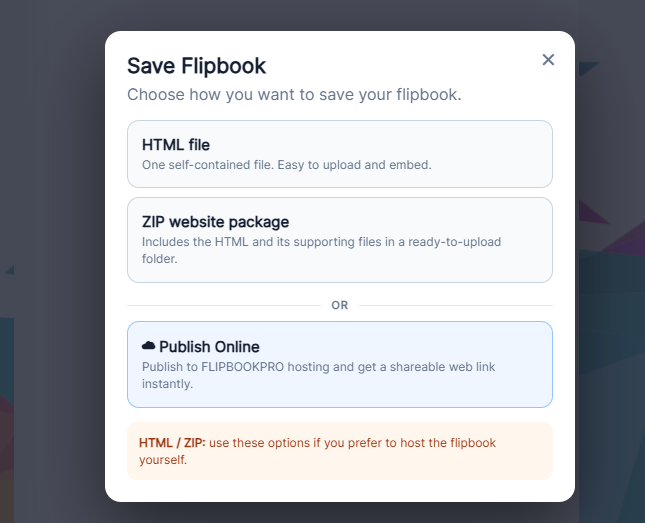
- Click Save Flipbook. With FREE and more than 20 pages a limit dialog appears; continuing exports the first 20 only.
- Choose HTML file for a generated viewer document with incorporated resources. Download and open it to test.
- Choose ZIP website package for your hosting. Extract it and upload index.html, pages/ and lib/ together, preserving names and structure. A ZIP alone does not publish the viewer.
- Choose Publish Online for FLIPBOOKPRO hosting. Wait for completion, then Copy URL or Open Flipbook.
- Test the final URL before sharing. For an iframe use that public URL; see website embedding.
PDF import and editing can take place locally. Publish Online transfers publication content to hosting. Save Flipbook does not generate a new print PDF; keep your source separately.
C5. Update without changing the shared URL
- Keep the edition’s .pdfinflip. Use Project → Open Project to edit; Open in Online Flipbooks is only the public viewer.
- Make changes, Save Project and test Full preview.
- Open Online Flipbooks and click Update on the correct publication card. The currently open editor content replaces it while retaining ID and URL.
- Check both project and card: if B is open and you Update A, B replaces A.
- Copy your Account ID and keep it private. Use existing Account ID and Use ID reconnect an existing account. The used/limit counter is publication count, not disk usage.
- Delete confirms removal of the hosted publication; editor Undo cannot restore it. Use Update for a new edition.

C6. Resolve common issues
| Symptom | Check |
|---|---|
| Cannot edit words inside PDF | They are a page image; edit the source or add Text. |
| Link does not open in editor | Test Full preview and check plan/destination. |
| Panel covers text | Send the shape Backward. |
| Quality unchanged | Save, choose quality and reimport. |
| Video playback error | Public URL and provider embedding permission. |
| ZIP online without pages | Upload pages/ and lib/ too. |
| Pages after 20 missing | Check the FREE export limit. |
See troubleshooting for additional checks.