1. Obtain the public URL
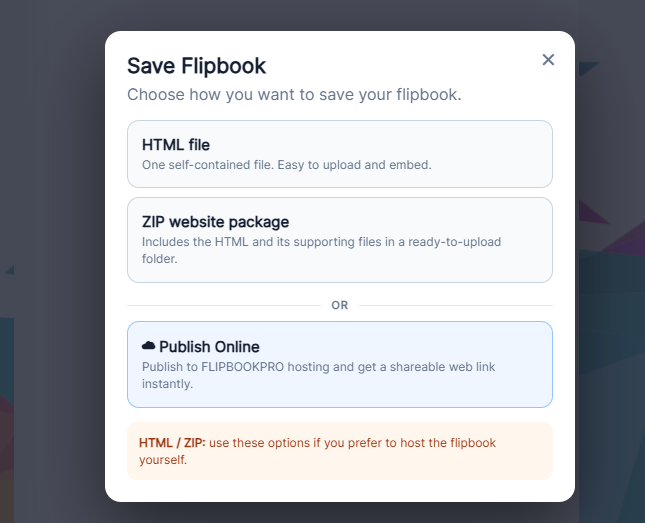
- For FLIPBOOKPRO hosting use Save Flipbook → Publish Online and copy the result URL.
- For your own hosting choose ZIP website package and extract it. The ZIP export creates index.html, pages/ and lib/.
- Create a folder such as /catalog/ on your hosting and upload the extracted files together, preserving names and relative paths. Uploading only the ZIP does not publish a viewer.
- Open the public index.html URL and check a middle page and the final page before embedding.
2. Generate the iframe
Paste the complete HTTPS publication URL below. This tool generates code locally; it does not upload files. You can adjust the initial 640 px height in the resulting code.
3. Insert and check
- For an HTML site paste the snippet in body where the viewer belongs.
- In WordPress Classic Editor use the Text tab; in the block editor use Custom HTML. Save and check the public page.
- If the iframe disappears after saving, ask the site administrator to check role permissions and HTML filtering.
- Test on a phone and use the direct publication link provided by the snippet. Keep width at 100%; adjust height:640px if necessary.
4. Resolve hosting problems
| Symptom | Check |
|---|---|
| 404 | Open index.html directly and verify the uploaded folder/file name. |
| Viewer controls but no pages | Verify the pages/ folder and the original export structure. |
| Works directly, fails in iframe | Look for frame-ancestors or X-Frame-Options errors in the browser console. |
| Old edition | Check that you replaced the same URL, then inspect browser/hosting caching. |
For a ZIP update generate and upload the complete new package. For hosted publications use Online Flipbooks → Update.