In this article
A publication is useful when people can find and understand its information, including those who do not use a mouse, distinguish some colors less easily or rely on a screen reader. An attractive cover and working zoom are not enough to establish accessibility. Review the content, document structure, viewer controls and surrounding website together.
This article provides an initial review for catalogs and brochures. It is not a conformity certificate or a replacement for specialist assessment. Its purpose is to prevent conversion into a flipbook from being mistaken for an automatic solution to problems requiring several different kinds of work.
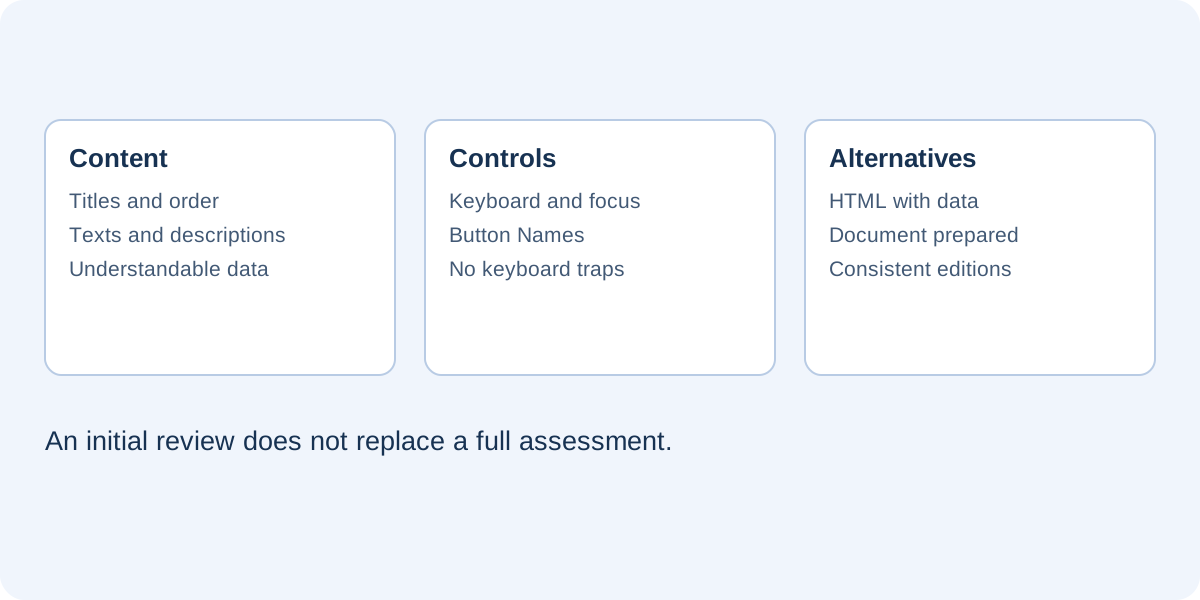
Separate the document from its interface
A PDF can contain structured text, headings and image descriptions, or only scanned pictures. An HTML viewer may provide recognizable controls while displaying the document itself as a large image. Accessible controls do not necessarily mean that a screen reader can interpret the information on those pages.
Identify the essential information before choosing a distribution format: services, prices, specifications, contacts and relevant conditions. If the main route does not expose it in a usable way, provide an equivalent alternative. “Contact us for details” does not automatically replace a complete price list available to other readers.
Structure the source content
Where your authoring software supports it, use genuine heading styles and a logical reading order. Making a line large and bold does not necessarily make it a heading recognizable to assistive technology. Add suitable descriptions for informative images and distinguish them from decorative elements that do not communicate necessary information.
Tables deserve particular attention. A comparison of three products needs headers identifying each product and characteristic. A table exported as an image may look sharp but remain difficult to interpret without sight. Keep a text version of important data and verify that the export preserves the features your workflow is intended to support.
Test keyboard navigation
Open the published page and move through links and controls using Tab. Focus should be visible and its sequence understandable. Check that you can enter and leave the viewer, reach its main controls and continue to the surrounding page without getting trapped.
Try a real task, such as returning to the contents or opening the company’s contact details. An icon-only control needs a meaningful accessible name. For an embedded viewer, provide a descriptive iframe title and a direct publication link so readers can choose a different route when appropriate.
Keep focused controls visible
Banners, floating advertising and mobile panels can cover controls. Check the bottom of the screen and situations where menus are expanded. A button may technically receive focus while remaining hidden behind another element. Review the complete page, not only an isolated catalog preview.
Make text and visual information understandable
Check text contrast, size at the intended viewing dimensions and behavior when magnified. Do not communicate information through color alone. Replace “available products are green” with an explicit availability label, perhaps accompanied by color. Keep descriptions and labels near the elements they explain.
An alternative description should communicate what a product photograph contributes to the reader’s decision. A filename is not useful descriptive text. You do not need to narrate every decorative detail, however. The appropriate wording depends on the image’s purpose and the surrounding explanation. Avoid needless repetition where the same information is already supplied as nearby text.
Review video, motion and links
When video contains essential information, check captions and an appropriate textual alternative for the relevant material. An embedded player still depends on the provider’s capabilities and the video’s settings. Do not make automatic playback the only way to obtain a service description.
Link labels should identify their destination or action. “Desk lamp technical specifications” is more useful than several identical “Here” links. Make changes of context predictable where relevant. Check that interactive areas do not overlap other elements and remain usable on the mobile version, rather than assuming desktop placement proves they are accessible everywhere.
Coordinate alternative formats
A company brochure can be accompanied by an HTML page containing services and contacts, plus a carefully prepared downloadable document. A catalog can use the store’s product pages as its detailed information source while the flipbook provides a visual route through the selection. Update alternatives alongside the publication so different readers do not receive contradictory editions.
When using FLIPBOOKPRO with rasterized PDF pages, do not treat the viewer’s page images as equivalent to the original document’s structured text. Keep the source PDF and evaluate its accessibility separately. Put clearly labeled alternatives on the surrounding website instead of assuming readers will discover them in the viewer menu.
Record findings and limits
An initial review can cover keyboard access, focus, headings, contrast, text alternatives and equivalent information. For each issue, record its location and the task it obstructs. “The next-page control has no understandable name” is more actionable than “accessibility needs improvement.”
Automatic tools can identify some problems, but they cannot alone prove that a catalog is understandable and usable. The W3C Easy Checks explain the preliminary nature of this kind of review. Seek an assessment appropriate to any specific requirements. The practical aim is to let people complete their tasks, not to attach a reassuring label to a document format.
Further documentation
Found an error or an unclear passage? Contact FLIPBOOKPRO, and include the article address and the passage concerned.