In this article
“How many DPI does an online catalog need?” combines two different questions. For a page viewed on screen, pixel dimensions, display size and the intended zoom level matter most. DPI relates an image to a physical printing size. Changing only the DPI metadata does not create missing detail or automatically make a digital page sharper.
Start with the intended result: a portrait product page read on a phone, a brochure explored on a monitor or a presentation. That decision gives you a basis for choosing proportions, image quality and a repeatable checking method. There is no single resolution that suits every publication equally well.
Choose proportions before resolution
Proportions describe the relationship between width and height. A square page has the same aspect ratio at 800 × 800 and 1600 × 1600 pixels, but the images contain different amounts of information. A very wide landscape page may look attractive on a monitor yet become difficult to read when fitted to a portrait phone screen.
Before exporting a complete document, prepare a representative sample. Include a detailed photograph, the smallest text you intend to use and a high-contrast element. Evaluate it at its actual reading size. Looking only at a greatly enlarged editor preview can lead you to approve lettering that becomes too small for readers.
Use display size to estimate image dimensions
Suppose a photograph will occupy 600 pixels of width in the intended presentation. A 600-pixel-wide source may be enough at standard display density; 1200 pixels provides a starting point for a display with twice that density. These are initial estimates, not universal requirements. Zoom, cropping and viewer behavior can change what is needed.
If you crop heavily, some source pixels will be discarded. Work from the useful image area after cropping rather than the camera’s advertised megapixel count. A huge photograph displayed only as a small thumbnail can add considerable file size without improving the information readers actually see.
Doubling both sides quadruples the pixel count
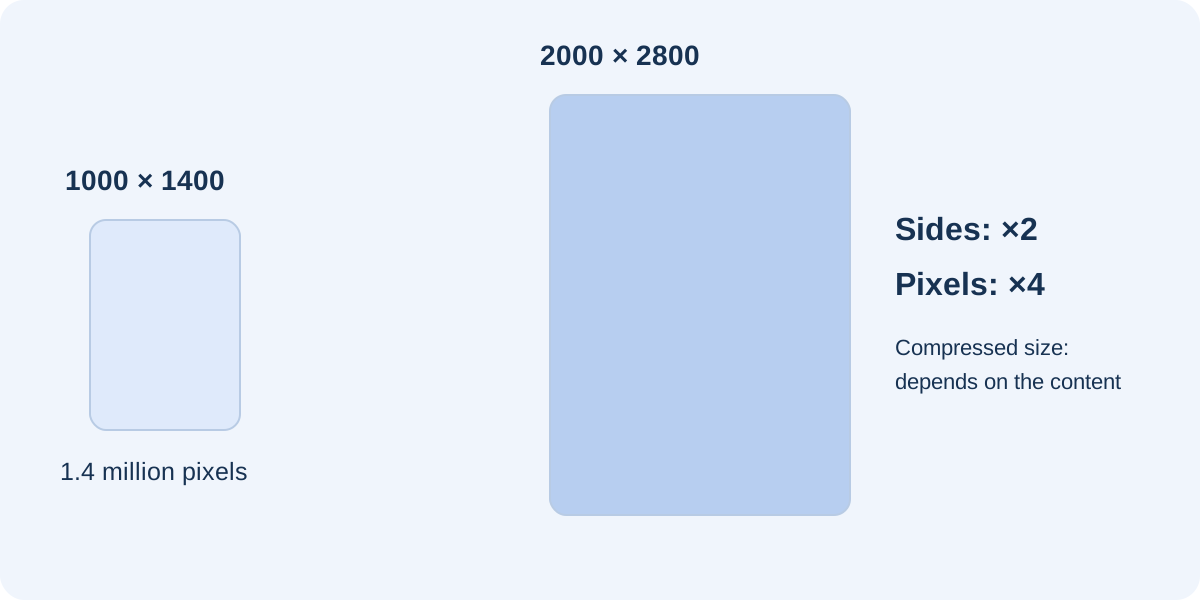
An image measuring 1000 × 1400 contains 1.4 million pixels. At 2000 × 2800 it contains 5.6 million: four times as many. The compressed file will not necessarily grow by the same factor, because content and compression affect the result. Nevertheless, larger dimensions can make processing and memory use more demanding. Compare samples rather than automatically selecting the largest option.
Treat photographs, logos and text differently
Photographs can often tolerate carefully chosen lossy compression. With a logo or diagram containing sharp edges, artifacts around lines may be more noticeable. A vector format preserves paths and shapes when supported by the workflow. If the publication is subsequently rasterized, its final appearance still depends on the dimensions produced at that stage.
Larger images do not solve every text problem. Small lettering remains uncomfortable when the whole page is reduced. Keep text as text in the source document when possible, and inspect the actual output. Prices and tables can become the weakest elements even when photographs look excellent.
Separate source quality from conversion quality
When starting with a PDF, compare the source and resulting publication at the same magnification. A photograph already blurred in the PDF will not recover detail through a heavier conversion. Conversely, a sharp source can lose useful information if converted into images that are too small or excessively compressed.
FLIPBOOKPRO applies the chosen PDF image quality during import. Changing the selector afterwards does not regenerate existing pages. Save your project before preparing a new import comparison. The quality and background guide describes the controls; the general principle is to compare the same detail under the same viewing conditions.
Run a controlled sample comparison
Export a lighter and a more detailed version of the sample page. Use clear filenames and record dimensions, file size and settings. Open both on a phone and monitor. Examine ordinary text first, then a magnified photographic detail. If you cannot identify a useful improvement for the intended use, the larger file may not be justified.
A simple sequence is:
- Check readability without zoom and confirm that crops are appropriate.
- Inspect a photographic detail and a line of small lettering.
- Compare file sizes using the same units.
- Repeat the check after uploading, rather than relying only on local files.
Recording results also helps you avoid changing too many variables at once. If you alter the page format, dimensions, compression and viewer together, it becomes difficult to tell which decision solved the problem.
Keep separate outputs when print is also required
A brochure intended for printing may need a separate production workflow. Preserve the original materials and prepare the online edition for screen reading. Do not assume the digital viewer output replaces a print-ready file. Print specifications, margins and color management should be agreed with the service producing the physical material.
For the digital edition, aim for a tested balance: suitable proportions, comfortable text and enough image detail for the expected zoom level. The goal is a documented choice for your content, not a supposedly perfect resolution. Revisit that choice when your audience, main device or publication size changes, and retain the source files so the next revision remains possible.
Further documentation
Found an error or an unclear passage? Contact FLIPBOOKPRO, and include the article address and the passage concerned.