1. Build the page structure
- Create from Scratch → A4 Portrait, Pages 1, Create Flipbook. Add the cover using Text and Image.
- With page 1 selected, choose Pages → + Blank for the contents page. Leave it empty for now.
- With page 2 selected, + Blank creates page 3, your first product sheet.
2. Design the first product sheet
- Use Add Content → Text for category and product name. Draw separate fields for code, price and specifications. “L-101”, “€29.90” and “Height 35 cm” are sample values to replace.
- Choose Image, select the product photo and draw its area. For a decorative panel, add Shape and send it Backward in Interactive content.
- Add a Button labelled “Check availability” with the real product URL. Studio does not synchronize inventory or prices with an online shop.
- Double-click Text for Font, Bold, color and alignment, then Apply changes. This edits an added text element, not wording printed inside a PDF page.
3. Duplicate and replace the data
- Select page 3 in Pages and click Duplicate. Update every text on page 4.
- Select its image, then Edit selected element to choose the new file.
- Edit the button URL. Copied pages retain the previous product destination.
- Duplicate page 4 for page 5 and repeat. Select page 5 and add + Blank for page 6; enter contacts and buying conditions.

4. Create the clickable contents
- Return to page 2 and add three product/category names with Text.
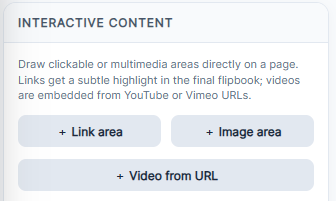
- For the first choose Interactive content → + Link area → Internal page, Target page 3, then Draw area on page over the name.
- Repeat for targets 4 and 5. Add a “Back to contents” area on each product sheet targeting page 2.
- After reordering or inserting pages, check every internal target number. Test links in Full preview; the viewer may require PRO for link interactions.
5. Maintain the edition
- Save a .pdfinflip copy with an edition name in your own archive.
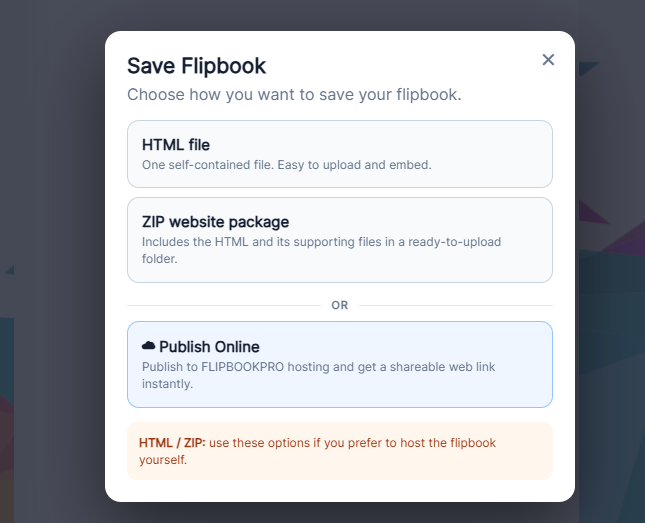
- Test the contents and all three product URLs. Export/publish and repeat at the final URL.
- For a later price change, Open Project, double-click its Text, Apply changes and Save Project.
- With the correct edited project open, use Online Flipbooks → Update on the matching publication to keep its URL. See the update procedure.